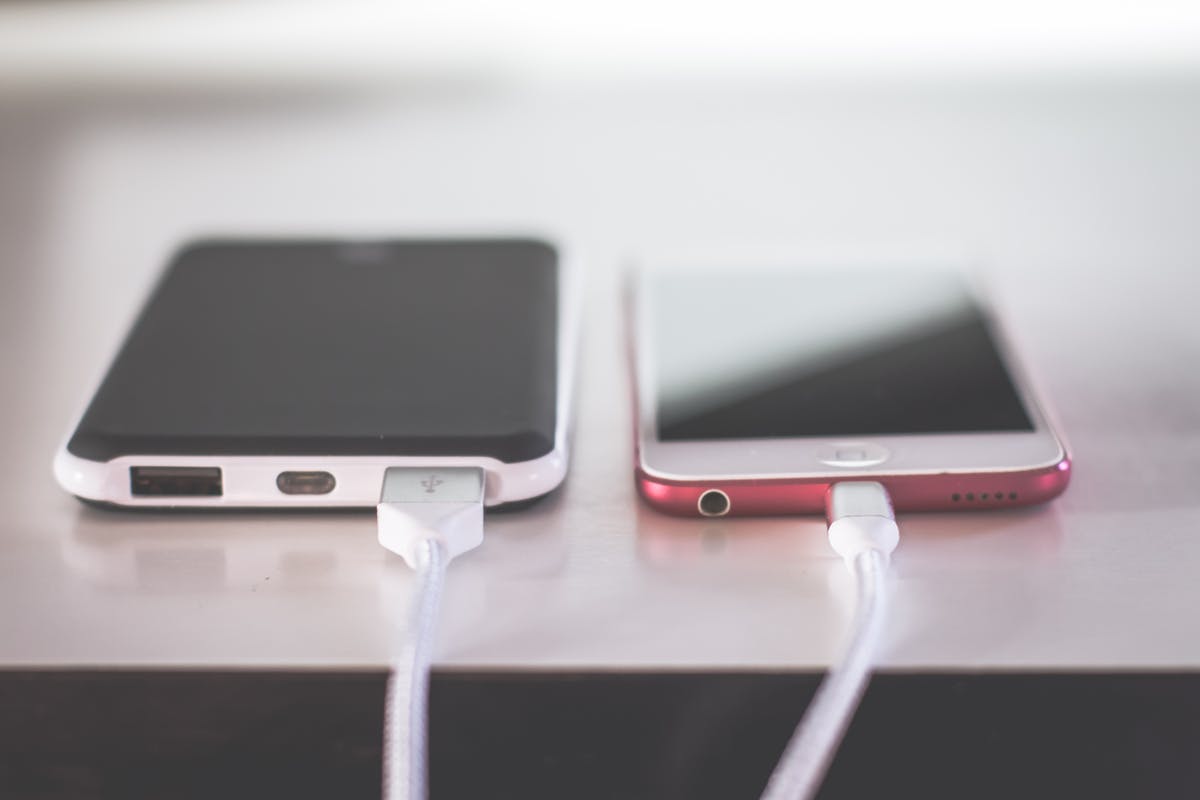
There’s nothing more stressful than watching your battery drop to 3%… even though your phone is plugged in and should be charging. You try adjusting the cable, switching the plug, or pushing the connector a little harder — but nothing. The phone just sits there, refusing to charge.
It’s frustrating, especially when you need your phone for work, travel, or something important. But here’s the good news: most charging issues can be fixed at home without spending a single rupee.
Let’s break down the real reasons your phone isn’t charging — and how you can fix it step by step.
Why Your Phone Isn’t Charging — Realistic Reasons Most People Overlook
Many people immediately assume the battery is dead or the phone is “gone.” In reality, the issue is much simpler in most cases.
Think of it like this: your phone is trying to drink water through a straw. If the straw is bent, clogged, or broken — it won’t work.
Here’s what usually blocks the “straw”:
- Dust or dirt in the charging port
- A damaged USB cable
- A faulty charging brick
- Loose connections
- Software glitches
- Overheating
- Battery calibration issues
- Hardware damage (rare but possible)
Let’s look at each and fix them one by one.
1. Check the Charging Cable (Most Common Reason)
If your phone is not charging even when plugged in, the cable is usually the culprit.
Signs your cable is bad:
- Charges the phone only when held at a specific angle
- Works on one device but not another
- Outer layer torn or bent near the ends
- Phone vibrates constantly as if plugging/unplugging
Try these steps:
- Borrow a cable from a friend or family member
- Use the original manufacturer cable if possible
- Avoid cheap local cables — many don’t support stable power flow
💡 Real-life example:
A friend of mine had a cable that “looked fine,” but once we tried another cable, the phone instantly charged. His old cable was internally damaged.
2. Examine the Charging Brick
The adapter is just as important as the cable.
Try this:
- Switch to another adapter
- Avoid low-watt or unbranded chargers
- Check if the adapter heats excessively
Sometimes a perfectly good cable won’t work simply because the adapter is weak or faulty.
3. Clean the Charging Port (The Most Ignored Fix)
Your charging port collects dust, lint, and tiny particles — especially if you keep your phone in your pocket. This can block charging completely.
How to clean safely:
- Use a wooden toothpick
- Gently scrape out dust — slowly, without pressure
- Do NOT use metal pins or needles
- Blow gently to remove any leftover debris
Many technicians share that nearly 40–50% of charging issues they fix are just dust-related.
(Wikipedia notes that debris buildup in connectors is a common cause of hardware charging failures.)
4. Restart Your Phone (Fixes Software-Level Charging Bugs)
Sometimes the phone is charging, but the system fails to detect it.
Restart helps with:
- Background glitches
- Misread charging state
- Battery management errors
- System lag
Try a straightforward restart — or a forced reboot if the phone is frozen.
- Android: Hold Power + Volume Down
- iPhone: Quick Volume Up → Volume Down → Hold Power
A simple reboot has solved charging issues for millions.
5. Check for Overheating
Phones stop charging when they are too hot to protect the battery.
If your phone feels hot:
- Remove the case
- Stop using heavy apps
- Keep it away from direct sunlight
- Place it on a cool flat surface
Once it cools, try charging again.
According to Healthline, overheating can damage battery performance and reduce charging ability — so heat is a serious factor.
6. Try a Different Power Source
Sometimes the problem isn’t your phone — it’s the socket.
Try:
- Another wall outlet
- USB port from a laptop
- A power bank
- A smart plug with surge protection
This quickly rules out socket issues.
7. Update Your Software
Manufacturers often release updates that fix battery and charging-related bugs.
Go to:
- Android: Settings → System → Software Update
- iPhone: Settings → General → Software Update
Updates can fix:
- Battery calibration
- Charging detection bugs
- Fast charging issues
- USB compatibility problems
8. Check for Liquid Damage
If your phone recently came into contact with water (rain, sweat, bathroom moisture), the charging port may temporarily stop working.
Signs of moisture:
- Charging paused warning
- Moisture detected pop-up
- Slow or unstable charging
Let it dry naturally for 4–6 hours.
Do not insert rice grains or use a hair dryer.
(According to U.S. Consumer Reports, rice is not recommended for drying electronics.)
9. Use Safe Mode (Android Only)
Some apps interfere with normal charging.
Try Safe Mode:
- Hold power button
- Long press “Power off”
- Select “Reboot to Safe Mode”
If the phone charges normally in safe mode → a third-party app is causing the issue.
10. Battery Calibration (Helps When Charging Stops at Random Percentages)
Here’s a simple, phone-safe calibration method:
- Let the phone drain to 0%
- Charge it uninterrupted to 100%
- Restart the device
This resets battery reporting and fixes false charging readings.
11. Wireless Charging Test (For Supported Phones)
If wired charging fails but wireless charging works, your charging port may be damaged.
This helps confirm whether the issue is hardware-related.
12. When to Visit a Technician
If none of the above works, the problem might be internal:
- Damaged charging IC
- Broken port
- Faulty motherboard pathway
- Dead battery
Most technicians diagnose this quickly.
Hardware repairs are usually affordable unless the motherboard is affected.
Conclusion: Your Charging Issue Is Fixable — Just Follow the Steps Calmly
A phone not charging even when plugged in can be stressful, but in most cases, it’s something simple — a cable issue, a dusty port, a faulty adapter, or a software glitch.
Before rushing to the repair shop, try the steps above.
You’ll be surprised how often these small fixes bring your phone back to life.
Your phone wants to charge — it just needs the right conditions.
If you want, I can also create a shorter version of this article, a YouTube script, or a social media post for this topic.