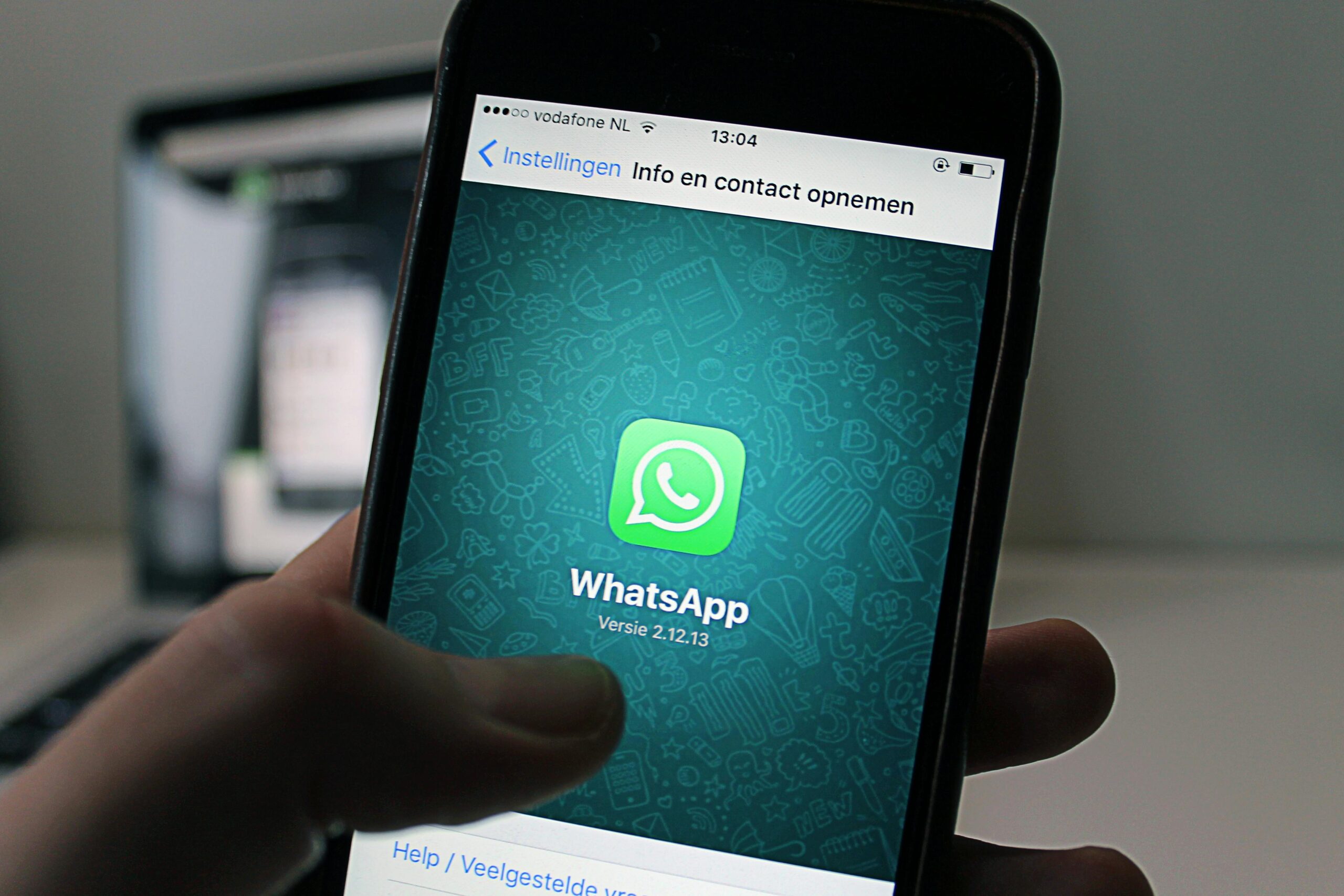
Picture this: you unlock your phone, open WhatsApp… and suddenly boom! twenty messages appear all at once. It’s frustrating — especially when those messages were important, urgent, or time-sensitive.
If WhatsApp only receives messages when you open the app, don’t worry. You’re not alone. This issue is extremely common on both Android and iPhones, and the good news is that it’s almost always caused by background restrictions, battery settings, or network issues — all of which you can fix in minutes.
Let’s walk through the real, practical solutions in a simple, human-friendly way.
Why WhatsApp Won’t Receive Messages in the Background
Think of WhatsApp like a watchman. If you tell the watchman to sleep until you wake him up, he obviously won’t deliver any messages. That’s exactly what happens when your phone restricts WhatsApp in the background.
Common causes include:
- Battery saver closing background apps
- Power optimization features
- Disabled notifications
- Restricted mobile data
- Poor network connection
- Background app refresh turned off
- Outdated WhatsApp version
- Buggy OS settings after an update
Let’s fix each one step by step.
1. Turn Off Battery Saver or Power Saving Mode
Battery saver prevents apps from running in the background — including WhatsApp.
Android:
- Settings → Battery → Battery Saver → Turn Off
- Settings → Apps → WhatsApp → Battery → Allow Background Activity
iPhone:
- Settings → Battery → Low Power Mode → Off
💬 Real example:
One user spent a whole week missed important work messages because their phone stayed in “Battery Saver” mode without them noticing.
2. Disable Battery Optimization for WhatsApp (Android Only)
Android phones (especially Xiaomi, Oppo, Vivo, Samsung, OnePlus) aggressively kill background apps.
Fix:
- Settings → Apps → WhatsApp → Battery → Unrestricted
- Settings → Battery → Battery Optimization → WhatsApp → Don’t Optimize
This single step fixes the issue for millions of users every month.
(Wikipedia also notes that background services in mobile operating systems can be restricted heavily for battery efficiency.)
3. Enable Background App Refresh (iPhone)
iPhones sometimes stop background activity when this setting is off.
Fix:
- Settings → General → Background App Refresh → On
- Scroll down → Enable it for WhatsApp
4. Allow Notifications (Sounds obvious, but often the cause)
Sometimes notifications are accidentally turned off.
Android:
- Settings → Apps → WhatsApp → Notifications → Allow All
- Enable “Show Notifications,” “Message Alerts,” “Group Alerts,” “Pop-up.”
iPhone:
- Settings → Notifications → WhatsApp → Allow Notifications
5. Check Internet Settings (WiFi & Mobile Data)
WhatsApp needs stable internet to receive messages even when the app is closed.
Ensure:
- WiFi is not disconnecting in sleep mode
- Mobile data is allowed in background
Android WiFi Fix:
- Settings → WiFi → WiFi Preferences → Keep WiFi On During Sleep → Always
Mobile Data Fix:
- Settings → Apps → WhatsApp → Mobile Data → Enable:
- Background Data
- Unrestricted Data Usage
6. Turn Off Data Saver Mode
Data Saver limits apps in the background.
Android:
Settings → Network & Internet → Data Saver → Off
iPhone (Low Data Mode):
Settings → WiFi → (Your Network) → Low Data Mode → Off
7. Lock WhatsApp in Recent Apps (Android-Specific Fix)
Some brands like Xiaomi, Vivo, Oppo kill apps unless locked manually.
Steps:
- Open WhatsApp
- Open Recent Apps view
- Long-press WhatsApp → Select Lock App / Keep Open
This tells the phone: “Do not kill this app.”
8. Update WhatsApp to the Latest Version
Older versions may have bugs with push notifications.
- Open App Store / Play Store
- Search “WhatsApp”
- Tap Update
(Healthline notes that outdated apps can cause unexpected behavior due to compatibility issues.)
9. Clear Cache (Android Only)
A corrupted cache can delay message delivery.
To clear cache:
- Settings → Apps → WhatsApp → Storage → Clear Cache
Note: Don’t tap Clear Data unless you have a backup.
10. Reconnect Your WhatsApp Account
If WhatsApp lost sync with the server, reconnecting helps.
Steps:
- Turn on Airplane Mode
- Wait 10 seconds
- Turn it off again
This refreshes your network registration.
11. Ensure WhatsApp Is Allowed to Run at Startup
Some phones block apps from starting automatically.
Android:
- Settings → Apps → WhatsApp → Permissions → Allow Autostart
- Or on some phones: Settings → Battery → App Launch → Manage Manually → Enable all toggles for WhatsApp
12. Reinstall WhatsApp (Last Option)
If nothing works:
- Backup chats
- Uninstall
- Reinstall from Play Store / App Store
This fixes deep-rooted bugs or corrupted files.
When to Suspect a Phone-Level Issue
If other apps also fail to send notifications, your phone may have:
- Software corruption
- OS bugs after update
- Network configuration errors
Try updating your phone’s OS, or worst case, factory reset (after backup).
Conclusion: You Don’t Need to Live With Delayed WhatsApp Messages
Delayed WhatsApp messages aren’t normal, and you shouldn’t have to open the app every time just to receive chats.
Most of the time, it’s a small setting — battery saver, background data, or notification restrictions.
Follow the steps above, and your WhatsApp will instantly start receiving messages in real time again.
If you want, I can also create a shorter YouTube script or social media version of this guide.
🔗 External Resources:
Wikipedia – https://en.wikipedia.org/wiki/WhatsApp
Healthline – https://www.healthline.com/health/battery-health
Apple Support – https://support.apple.com/notifications